The Great
Veggie Crunch!
Veggie Crunch!
...


























All iPhones and iPads updated to at least iOS 9 are supported. This includes all but the first generation iPad and iPhone 4S and up.
All iOS devices released from 2011 onwards are supported but may need an iOS upgrade from the version originally installed on the device.
Find the app on the Apple App Store by searching for "crunchandsip".
Android phones and tablets running Android 4.4 KitKat (most devices launched from 2013 onwards).
Find the app in the Google Play store by searching for "crunch&sip".
The web app can be used on Windows, Mac and Linux based systems running any up to date versions of the modern, mainstream browsers Chrome, Firefox, Safari, Opera and Edge are supported.
Internet Explorer is no longer supported at all.
Mobile versions of browsers are also supported with Chrome, Firefox, Safari, Samsung Internet and Opera on devices that meet the above mobile device supported requirements.
The Crunch&Sip program is an easy way to help kids stay healthy and happy!
Crunch&Sip is a set time during the school day to eat vegetables and fruit and drink water in the classroom. Students bring vegetables or fruit to school each day for the Crunch&Sip break. Each child also has a small clear bottle of water in the classroom to drink throughout the day to prevent dehydration.
Giving students the chance to re-fuel with fruit or vegetables helps to improve physical and mental performance and concentration in the classroom, as well as promoting long term health.
Crunch&Sip is a well-established program in Western Australia, with over 44% of eligible schools across the state currently certified.
The objectives of Crunch&Sipare to:
We are Western Australia's leading, independent, evidence-based cancer organisation and the only one fighting every cancer from every angle.
One in two Australians are diagnosed with cancer in their lifetime. We're determined to change that.
In WA alone, there are almost 12,000 new cases of cancer diagnosed each year; that number is expected to rise. Currently, over 87,000 West Australians living with cancer need our help.
This year, around 4000 West Australians will die from cancer. That is 4000 too many; too many of our fathers and mothers, brothers and sisters, children, friends and colleagues. But we are making progress. The survival rate for many common cancers has increased by 30 per cent over the past two decades and today, the five year survival rate for some common cancers is over 90 per cent.
There's still a long way to go until we can live in a world where cancer no longer turns people's lives upside down. Through our world-class research funding program, our prevention programs and our vast range of information and support services, we are bringing the defeat of cancer closer.
Every time you make a donation, take part in a Relay For Life event, host an Australia's Biggest Morning Tea or Girl's Night In, buy a Daffodil Day pin or become a regular giver, you join us in this fight and together we will beat cancer.
On behalf of those you are helping, thank you.
The Committee, made up of vegetable producers, is the voice of all vegetable producers.The Committee brings all vegetable producers together to work towards a unified industry and to develop a strategic plan which can take the industry forward. The committee uses the funds collected from the Fee for Service for the development and security of growers and producers in the vegetable industry.
Healthway funds sport, arts, community activities, health promotion projects and research to inspire West Australians, especially young people, to live healthier lives. They work with organisations we fund to create healthy activities and events and promote messages about good health you see at community events throughout Western Australia.
Before you start here are some quick instructions on how to navigate your way around the Great Veggie Crunch App!
Before you start crunching make sure you adjust the app settings to suit your device, this is a very important step to enhance your Crunching experience.
To adjust your settings, click on the Settings tab which is located on the home page.
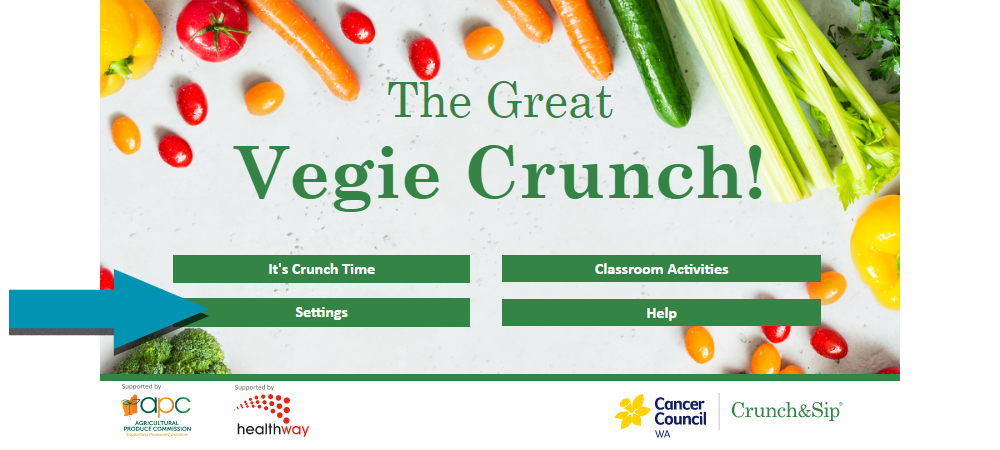
Once you have opened the Settings tab, the screen will look like the image below. You will have two catagories to choose from. There are several features you can adjust to suit your device, under the Basic and Advanced headings that will let the App run as desired as you crunch.
Top Tip - Be sure to calibrate your settings based on the device you are currently using, we recommend doing 2-3 test runs before the event, just in case you need to adjust some of the original settings.
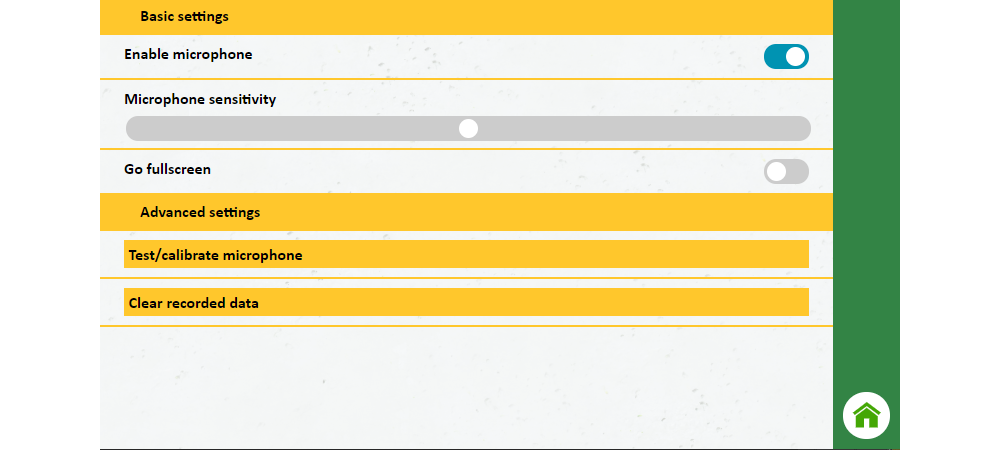
Firstly to begin using the App and to record your results, you will need to give the App permission to access the device microphone. Enabling this function will allow the App to record your Crunchibel results and will allow the App to record any surrounding sounds. This will usually occur automatically when you start the app but if you have previously disabled the microphone you will need to re-enable it in the settings page.
To enable this feature, click on the Enable Microphone tab. Once this is successfully enabled, the tab on the right hand side will change from grey to blue. If your device has no microphone or fails to initialise the microphone, you can instead control the meter manually as will be discussed later.
Once you have enabled this feature and have given the App permission to access your microphone, you can now adjust the Microphone's sensitivity gauge.To adjust your microphone's sensitivity, use the gauge bar to adjust the settings. If you drag the setting bar to the left hand side of the page, it means your device is sensitive to noise.
However, if your device does not pick up crunch sounds easily, we recommended setting your device to a higher rate of sensitivity.By adjusting this setting to match your device, this will allow the App to record your results effectively and your CRUNCH will be recorded more precisely. You may need to adjust this setting to suit your device, number of students or environment.
Go to full screen tab is a feature which is only relevant to those who are using the browser version of the App. Go to full screen allows the App to be played in ‘full screen’ mode, rather than just being restrained to the web page.Those who are using the native apps on smart phones or tablets can disregard this feature.
You can press the Test/calibrate microphone button if you want to test your microphone in more detail and manage more sophisticated control.
Press the Clear recorded data button to clear the recorded scores that are used to draw the charts in the class activities section. You may want to do this after testing to start with a clean slate with your students. Note that this is permanent and cannot be undone.
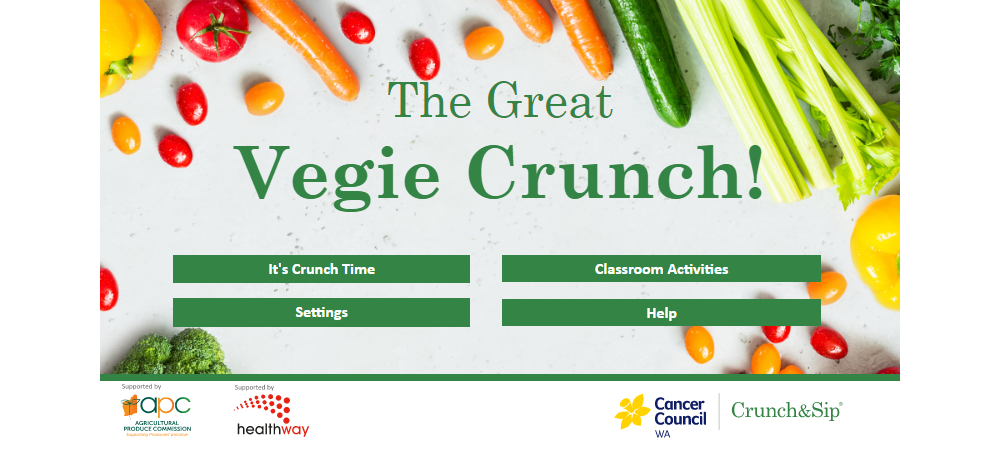
Those who are participating in the Great Veggie Crunch event click on the 'It's Crunch Time' tab as shown in the image below.
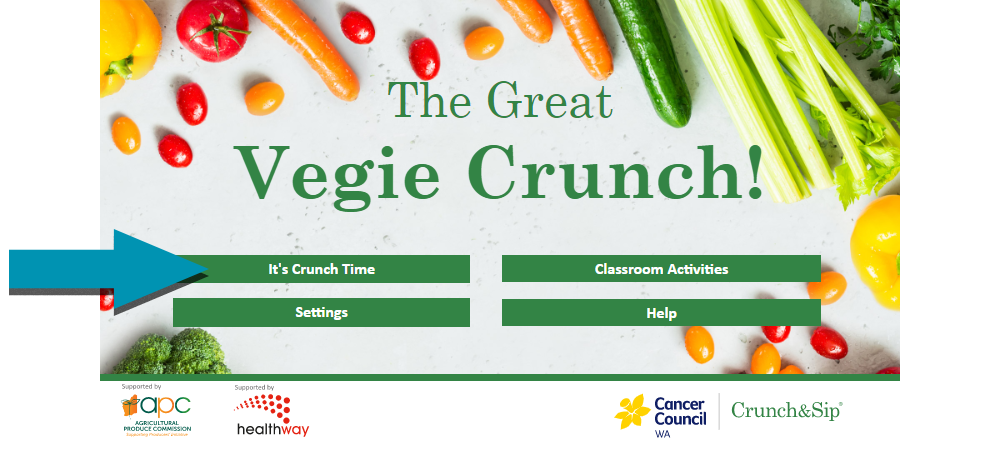
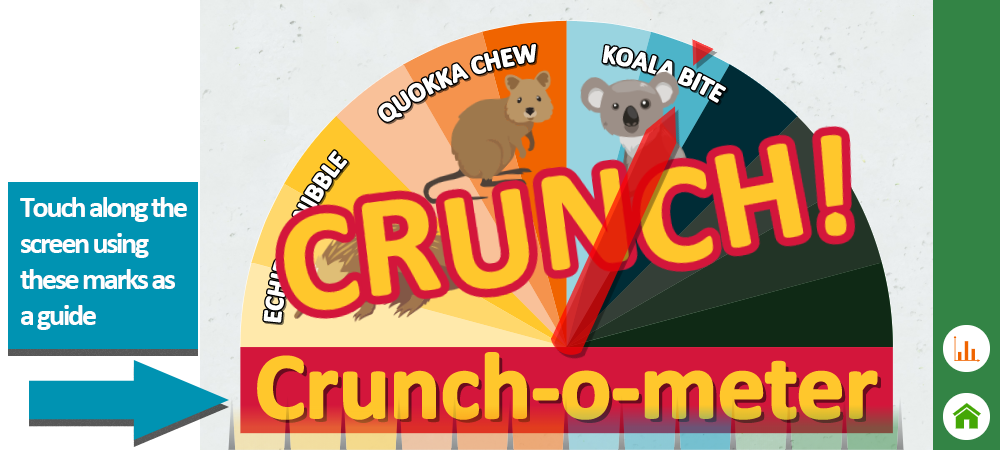
Once you click It's Crunch Time, the screen will show a "get ready" message and a prompt to touch the bottom of the screen to continue. Once you touch the screen the countdown will begin - three, two, and one, crunch.When the screen flashes up with CRUNCH, this is when you instruct your group or class to "CRUNCH" as loud as they can!
The Crunch-o-meter will automatically pick up the sound through the microphone and will provide you with a Crunchibel score. If your microphone is not working or there are issues with the sound don't panic!
It is really important to test the app prior to the event and determine if the manual option (microphone disabled) is best for you. Please ensure you have selected the appropriate feature in the settings before the event.
To use the manual option, use the Crunch-o-meter gauge which is located directly under the Crunch-o-meter banner. When you take a closer look at the page you will notice some black bars running along the bottom, this is your override gauge, and by clicking or touching the screen along this gauge you manually control the meter's needle. You can click once to go straight to a value or drag along to swing the needle back and forth for more fun and dramatic effect. The gauge will disappear when the timer runs out and the app will generate your final results, depending on the level you selected on the gauge.
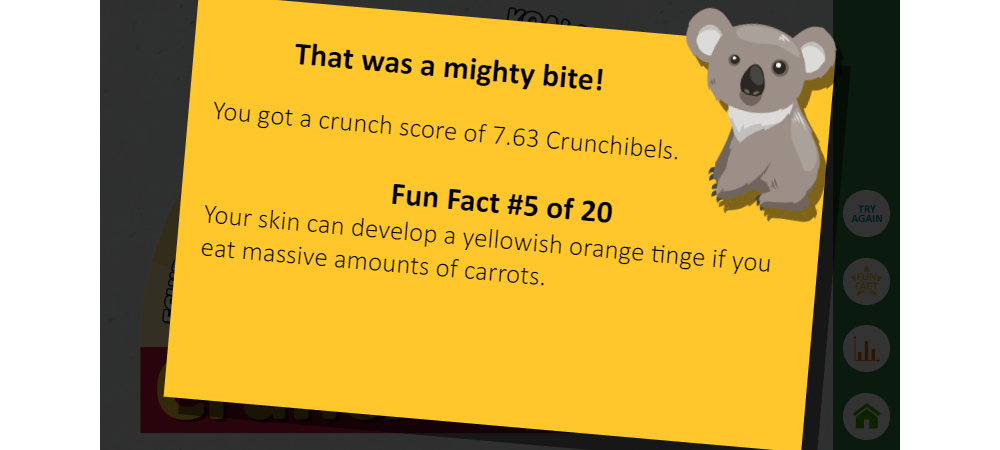
Once your Crunch-o-meter has recorded your crunch, click on the Crunch-o-meter or on the Fun Fact Button. Here is where you will find your CRUNCH result and a fun fact will pop up. Happy Crunching!
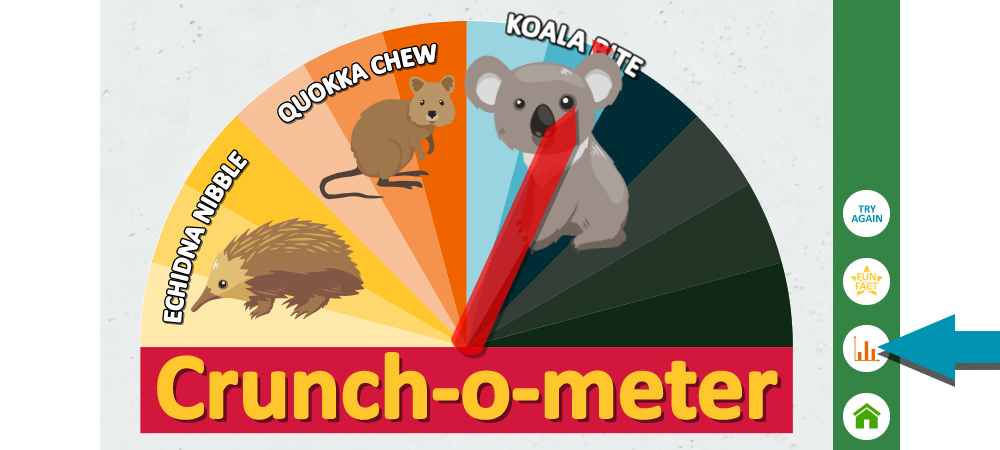
To try again, click the Try again button which is also located on the bottom right hand side of the page, this will allow you to keep crunching as many times as you like, without having to head back to the home screen.
To head back to your home screen simply click the Home Icon, which is also located on the bottom right hand side of the screen.
To look at all the data that you've collected, you can click on the graph button on the Crunchometer page or go to through the Classroom Activities tab on the home screen and click on Your Data.
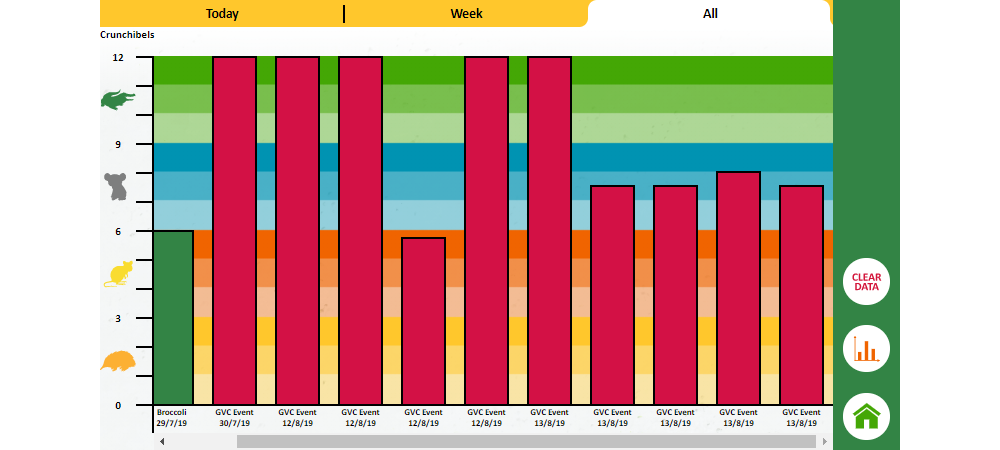
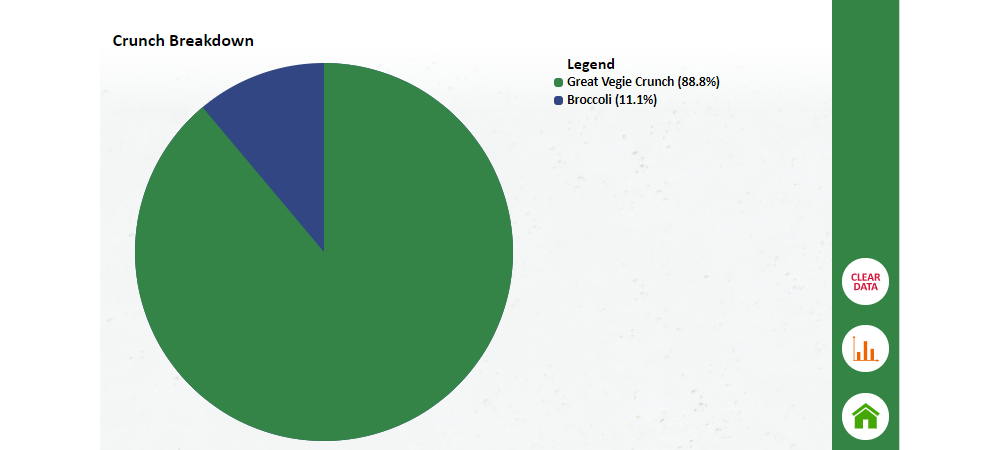
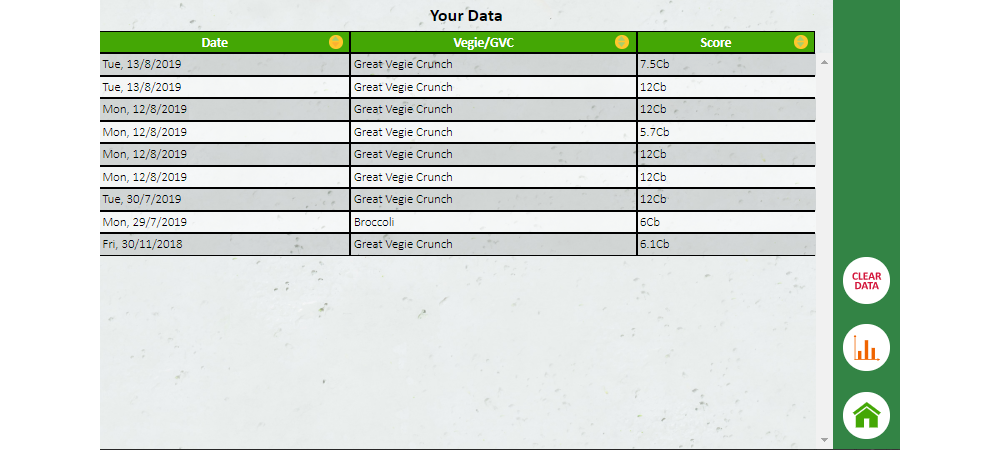
Here you will see a choice of chart types to view. Select either the bar chart view, the pie chart view or the spreadsheet view.
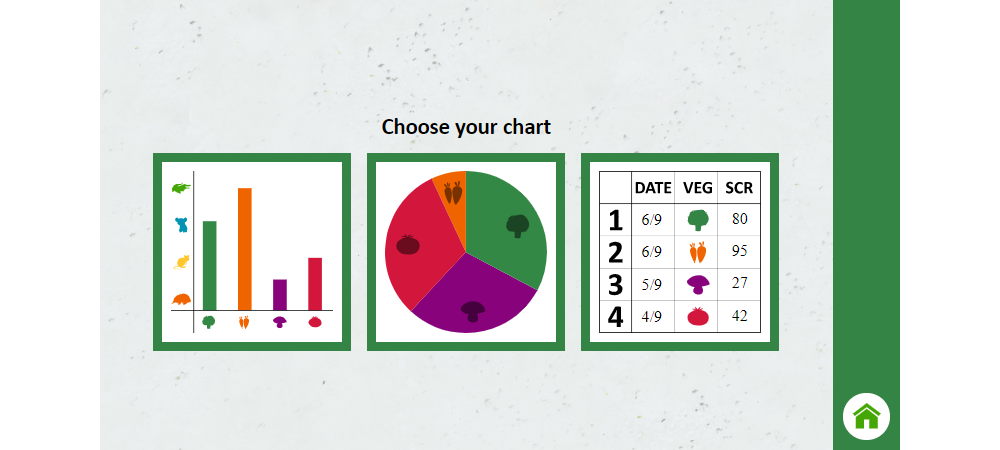
In the bar chart view you can see each of your measurements made in the GVC app. The bars are labelled along the bottom with the veg (or GVC) of the measurement. The score in Crunchibels can be measured along the vertical axis. The first chart shows today's measurements. Scroll down to see this week's measurements and all measurements.
In the pie chart view you can see the breakdown of the different produce that you have been crunching.
In the spreadsheet view you can see all your data listed in a spreadsheet. You can sort the data by date, type or score by clicking on the headings.
On the chart views you will see a button labelled clear data. Click this if you want to remove all the measurements you have recorded. Note that this is permanent and not reversible. The app will ask you to confirm that you want to clear the data.
Top Tip - Share your Crunching experiences!
Finally don't forget to check our Crunch&Sip social media pages on Facebook and Instagram.We encourage everyone who uses the Crunch&Sip App to share their experiences with our team. Whether you tag us in your post or mention Crunchandsip in your videos, images or boomerangs, we would love to hear from you. So, don't forget to #crunchandsip when you take your next picture.